Overview
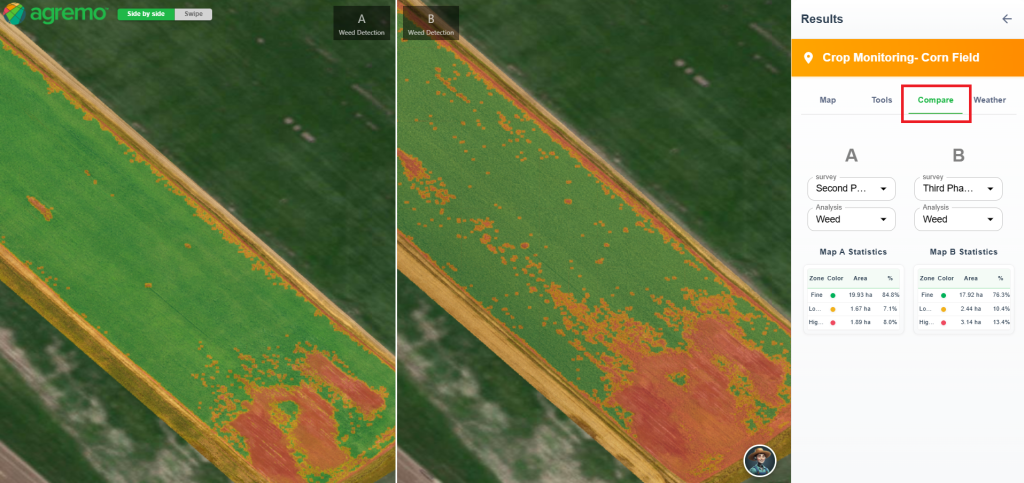
The Map Comparison Tool allows you to compare crop maps over time or between different analyses on the same field, helping you track crop progress, evaluate treatments, and gain deeper insights into field performance.
This tool is available based on the following:
- All Products: Crop Monitoring and Field Trials – access map comparisons directly within your fields in these products.
- AI Analyses: available for all AI analyses.
- Satellite Imagery Analyses: available for all supported Vegetation Indices to monitor crop growth and variability.
How to Access
- Open your AI analysis or Satellite map for the selected field.
- Click the Compare tab to open the Map Comparison Tool. Analyze your field over time or across different analyses.
How It Works
- Open the Map Comparison Tool – Access the Map Comparison Tool by clicking the Compare tab from your AI analysis or Satellite map. The tool will appear in the right sidebar with a split-screen view for comparison.
- Select Maps or Analyses to Compare – The map on the left is automatically displayed. On the right, choose the map or analysis you want to compare against.
- Visualize Changes – Compare the selected maps side by side or use the swipe view to spot differences in crop health, stress, or field performance.
- Review Comparison Data – The sidebar shows key values and results for both maps, giving you actionable insights at a glance.