Overview
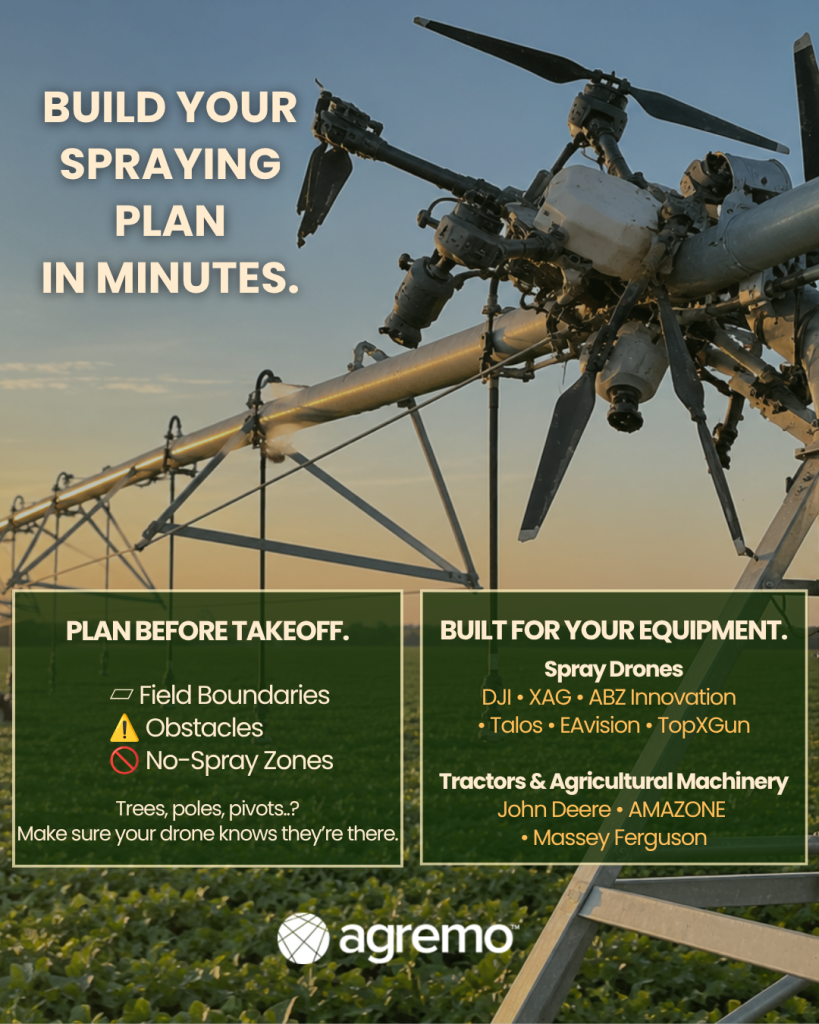
With Operation Planning, you can set up how your drone will perform operations in a field by defining:
- Field boundaries
- Obstacles
- No-spray zones
The final output is automatically tailored to your specific drone, ensuring compatibility with the required file format. This ensures safe, precise, and optimized spraying operations.
How to Access
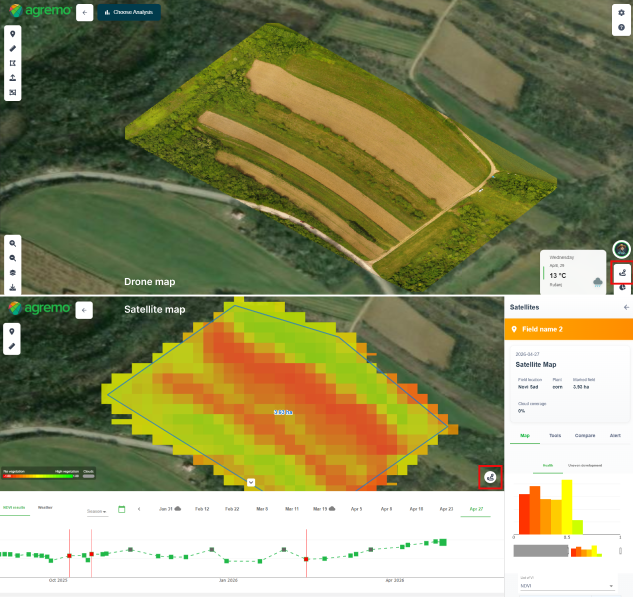
- When creating a new field, access Operation Planning directly on the satellite view
- Open an existing field with Satellite imagery
- Operation Planning is available on uploaded Drone maps
Operation Planning is located in the same place across all workflows.
How It Works
1. Creating Operation Planning on the New Field
- Click New Field to create a new field.
- Once the field is created, a modal will appear with the Operation Planning option.
- Click Operation Planning
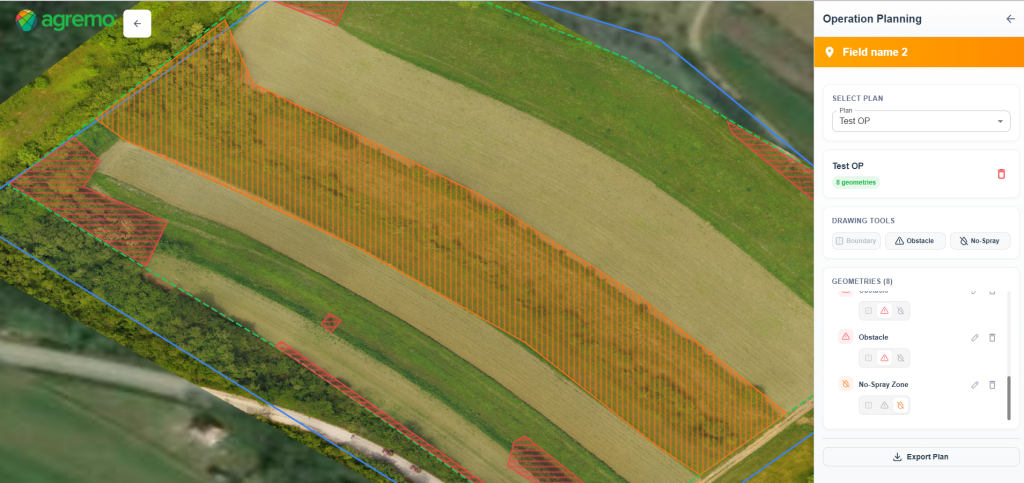
- The right sidebar opens, allowing you to create a new Operation Plan.
- Add Boundary, Obstacles, and No-Spray Zones
- The initial boundary, created during field setup, is displayed by default. It can be edited by clicking on the annotation or deleted and redrawn
- After defining all elements, click Export Plan
- Select your drone model
- The plan will be exported in a format compatible with your drone
Note: Watch the video on how to create a field step by step and start building your first Operation Plan.
Note for John Deere Operations Center users:
If you import a field directly from John Deere Operations Center (JDOC) into Agremo, an Operation Plan will be created automatically using the imported field boundary, obstacles, and no-spray zones.
Simply open Operation Planning, where you’ll find the automatically generated plan labeled “John Deere.” From there, you can review or edit the plan and export it for your equipment.
2. Creating Operation Planning on the existing Field
- Open Satellite imagery or a Drone map, regardless of whether AI analysis is available
- Click the Operation Planning icon
- The right sidebar opens, where you can create a new Operation Plan or select an existing one
- Add Boundary, Obstacles, and No-Spray Zones
- After defining all elements, click Export Plan
- Select your drone model (eg DJI, XAG, EAVision, ABZ Innovation, TopXgun..) or tractor (eg John Deere, Amazone, Massey Ferguson ..)
- The plan will be exported in a format compatible with your drone
Rules:
- All Operation Plans within a field appear in the Operation Planning list. For example, users can create them during field creation or later using Satellite or Drone maps.
- Each Operation Plan must have a name.
- Each field can contain only one boundary.
- Users can add multiple obstacles and no-spray zones.
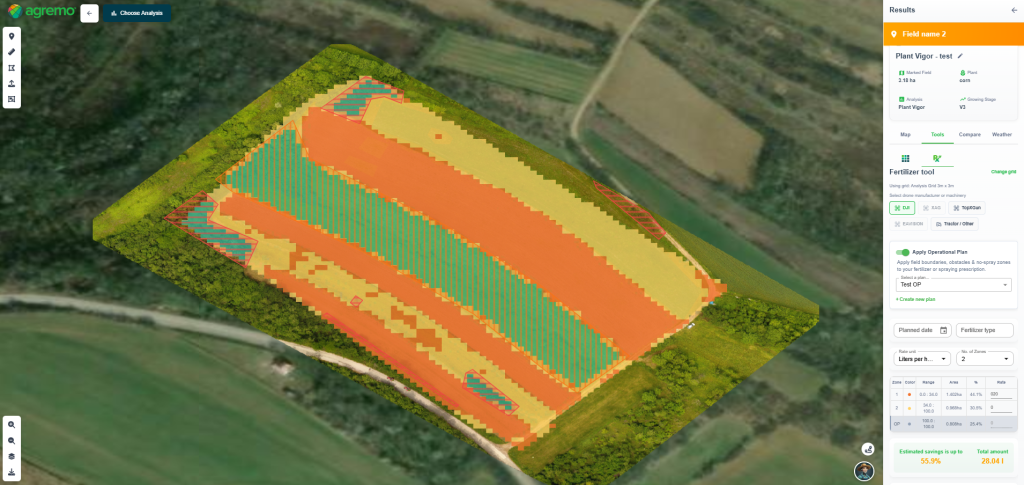
2. Applying Operation Planning on Prescription Maps for Enhanced Precision Spraying
- Open the Fertilizer or Spraying prescription map tool
- Select the drone or tractor for which you want to create the prescription map
- Choose the tile size
- Apply an existing Operation Plan or create a new one
- The defined zones will appear in the right sidebar table. At the same time, greyed-out areas on the map will show obstacles and no-spray zones defined in the Operation Plan.
- The calculator automatically excludes these areas from savings estimation and treatment volume calculations
- Finally, export the plan. The Prescription Map and Operation Planning data will be automatically exported together, ready for upload to the controller.