
Overview
With the Agremo × Revolution Drones integration, you can create and prepare complete spraying operations in Revolution Ops Center by Agremo and transfer them directly to Revolution Remote Control with a single click.
In Revolution Ops Center, you can:
- Create an Operation Plan using satellite imagery or an uploaded RGB map
- Define field boundaries, obstacles, and no-spray zones
- Create Prescription Maps based on vegetation indices for targeted applications
- Import field data from John Deere Operations Center
- Send your complete spraying operation directly to Revolution Remote Control
There is no need to download, export, or manually transfer files between platforms. Once your operation is ready in Revolution Ops Center, it can be sent directly to Revolution Remote Control.
This ensures a fast, connected, and streamlined workflow from field planning to spraying.
How to Access
You can start the Agremo × Revolution Drones workflow in several ways:
- When creating a new field, create your Operation Plan directly using the satellite view
- Open an existing field with Satellite imagery and access Operation Planning
- Upload RGB drone imagery to create an Operation Plan or generate a Vegetation Index and Prescription Map for targeted application
- Import a field from John Deere Operations Center to bring supported field data into Revolution Ops Center and automatically create an Operation Plan
Regardless of how you start, your Operation Plan and Prescription Map can be prepared in Revolution Ops center and transferred directly to Revolution Remote Control.
How It Works
The workflow consists of two main parts:
- Revolution Ops Center: Create and prepare your Operation Plan and, when needed, Prescription Map.
- 2. Revolution Remote Control: Access the transferred operation, complete the required setup, and prepare it for spraying.
Agremo
Step 1: Create or Open a Field
Create a new field in Revolution Ops Center or open an existing one.
For detailed instructions, follow the step-by-step guide or watch the video tutorial below:
📄 Step-by-Step Guide: How to Create a Field in Agremo
▶️ Video Tutorial: How to Create a Field in Agremo
Step 2: Create an Operation Plan
Open Operation Planning and prepare the field for the spraying operation.
Define:
- Field boundary
- Obstacles
- No-spray zones
You can create your Operation Plan using either satellite imagery or an uploaded RGB drone map.
Once all elements are defined, review the plan to make sure it accurately represents the field and spraying area.
For detailed instructions, follow the step-by-step guide below:
📄 Step-by-Step Guide: How to Create an Operation Plan in Agremo
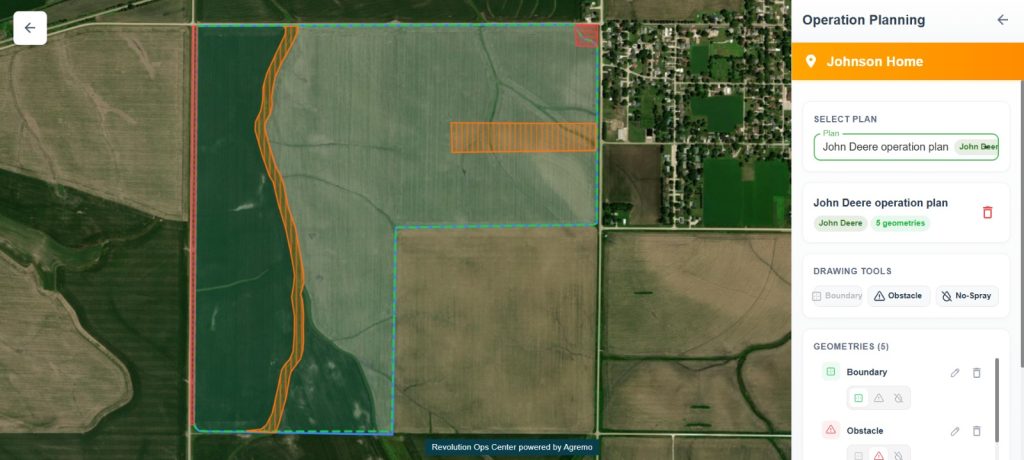
Revolution Ops Center by Agremo → Revolution Remote Control.
John Deere Operations Center Workflow
If your field already exists in John Deere Operations Center, you can import it directly into Agremo.
The imported field boundary, obstacles, and no-spray zones are used by Revolution Ops Center to automatically create the Operation Plan.
Open the generated Operation Plan, review the imported elements, and send it directly to Revolution Remote Control.
John Deere Operations Center → Revolution Ops Center → Revolution Remote Control.
Step 3: Create a Prescription Map
If you are using uploaded RGB drone imagery, you can generate a Vegetation Index and use it to create a Prescription Map for targeted spraying.
Define the application zones and corresponding application rates based on field variability.
For detailed instructions, watch the video tutorial below:
▶️ Video Tutorial: How to Create a Field in Agremo
Step 4: Revolution Remote Control
Once your Operation Plan is ready:
- Click the Export button.
- Enter the required application rate.
- Select Revolution as the export destination.
- Click Export to send your operation directly to Revolution co
If you have also created a Prescription Map, it can be transferred as part of the same workflow.
Your operation is sent directly from Revolution Ops Center to Revolution Remote Control. No files to download, save, or manually upload.
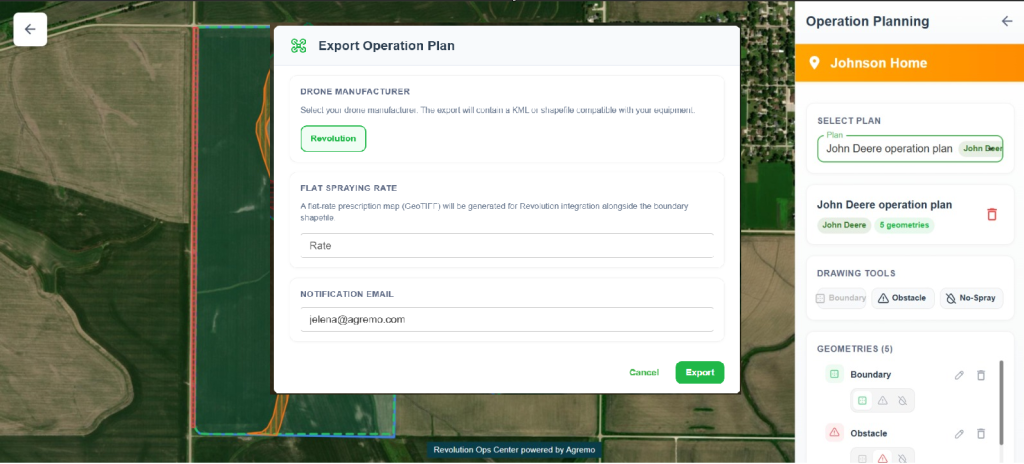
Revolution Remote Control
Step 5: Open the Field in Revolution Remote Control
Once the operation has been exported from Revolution Ops Center
- Open Fields on the remote control.
- Find the field created and exported under the Downloads tab.
- Download the field, then select the field to open it.
- The field boundary created in Revolution Ops Center will automatically appear on the map.
- Enter or adjust the Work Width for the operation.
Review the field boundary and Work Width before proceeding to the next step.