Overview
The Spraying Tool allows you to perform precision spraying by creating a map for Spot or Variable-Rate Prescription Maps.
This tool is available based on the following analyses:
AI Analyses – available for Weed Detection
Real-time Plant Health Analyses – based on all Vegetation Indices
Satellite Imagery Analyses – based on all Vegetation Indices
How to Access
From AI Analyses
- Open the uploaded Drone map for the selected field.
- Go to the analysis results for Weed Detection.
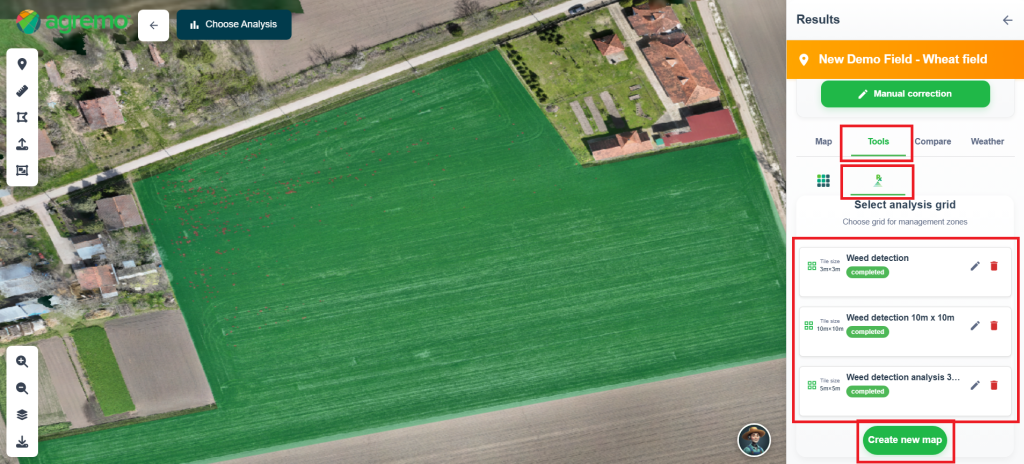
- Click on the Tools tab.
- Select the Spraying tool.
- Select a predefined grid or create a new one by clicking the “Create Map” button.
- The Spraying Tool will appear on the right sidebar
From Real-time Plant Health or Satellites
- Open the uploaded Drone map or Satellite map for the selected field.
- Click on the Tools tab.
- Select the Spraying tool.
- Select a predefined grid or create a new one by clicking the “Create Map” button.
- The Spraying Tool will appear on the right sidebar
How It Works
- Open the Spraying Tool – Access the Spraying Tool from your analysis to start creating a precision spraying map.
- Select or Create a Grid – Choose a predefined grid based on tile size, or create a new one by clicking “Create Map.”
- The tile size should match the working width of your drone or sprayer for optimal application.
- Generate Prescription Map – Once you select the appropriate grid, your prescription map is automatically generated, showing field zones for Spot spraying or Variable-rate application.
💡 Note: XAG drones support only a 5×5 tile size for prescription maps.
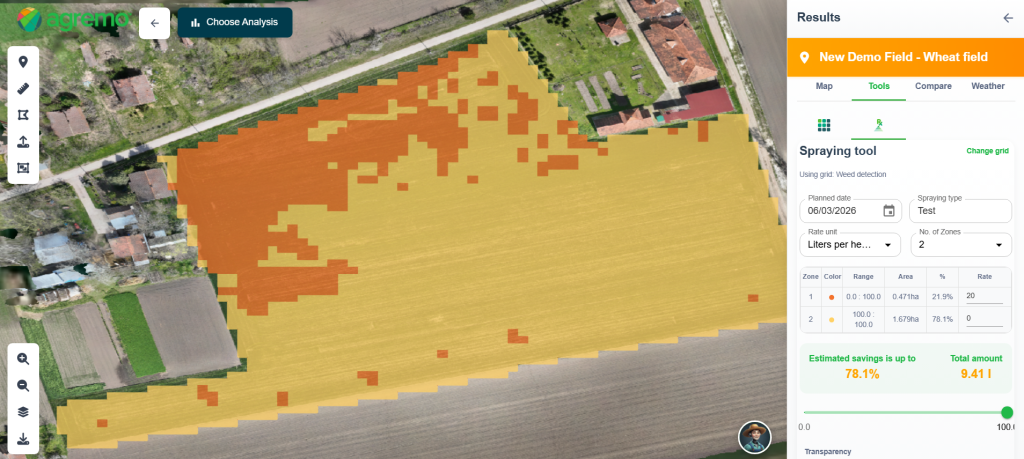
4. Adjust Application Settings – Once the prescription map is created, customize your spraying parameters:
- Set the number of zones for the application
- Choose the rate unit (liters/kilograms or gallons/pounds, based on your system settings)
- Define the application rate per zone (including herbicide and water)
- Add a planned spraying date (optional)
- Enter a treatment name (optional)
5. View Required Input & Estimated Savings – After setting all parameters, the platform automatically calculates the total input required and estimates your potential savings compared to uniform (flat) field spraying.
💡 Note: Since most drones support only the metric system (liters and kilograms), any values entered in imperial units will also be automatically converted to metric for use in controllers.
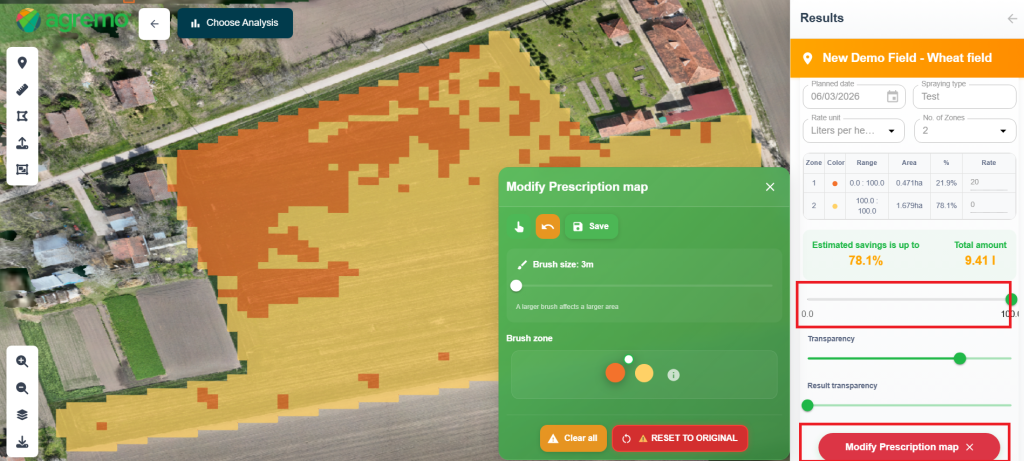
6. Modify Prescription Map
- Use the slider below the histogram to quickly adjust zones and update your prescription map in real time.
- For more precise control, you can also click “Modify Prescription map” to open the editing tool and fine-tune your map in detail.
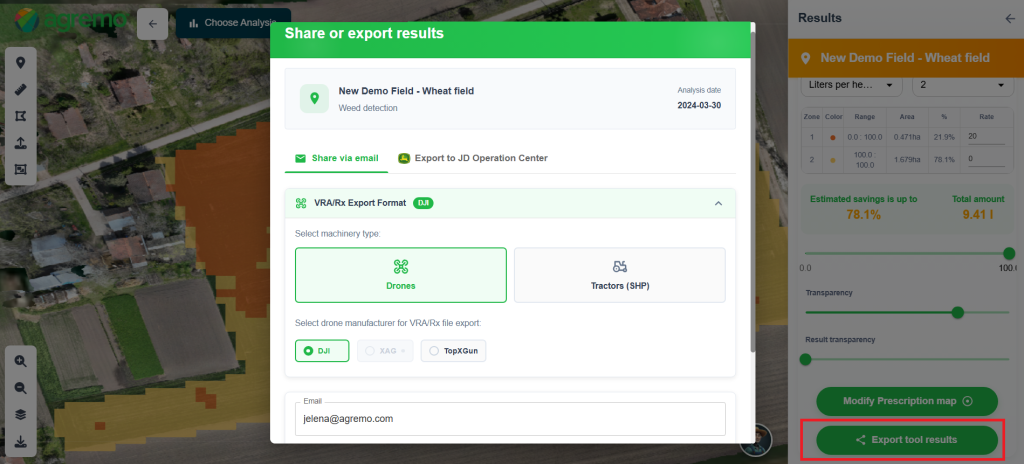
7. Export Prescription map – Click “Export Tool Results” to open the export modal. Select your preferred option: drone (DJI, XAG, TopXgun), tractor, or direct export to JDOC (John Deere Operations Center).
- All exported files are ready-to-use and require no additional modification. Simply upload them to your drone, controller, or tractor system and start precision spraying immediately.
💡 Note: For JDOC export, make sure your account is connected within the Agremo app.