
Overview
Manual Result Correction gives you the ability to refine analysis outputs and keep full control over the final results directly within the platform.
This feature allows you to adapt results to your field knowledge and specific workflows, ensuring the final output supports your operational decisions and use cases.
Manual Result Correction – Counting plants
The Manual Result Correction feature is available for Stand Count and Plant Population analyses. It allows you to refine detections and adjust key analysis parameters after results are delivered.
Manual correction consists of two parts.
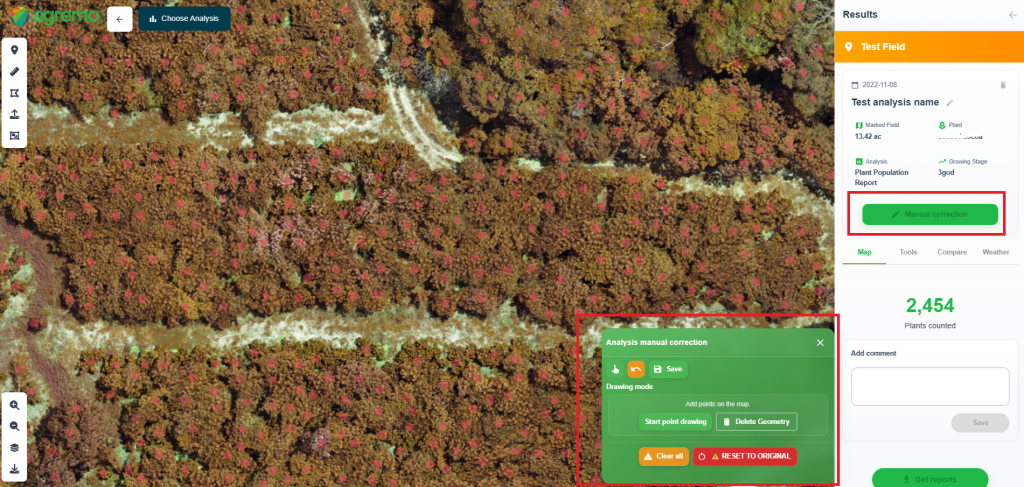
1. Adjust detected plants
You can add new plants or remove existing detections directly within the analysis.
To make corrections:
Click Manual Correction to open the correction tool.
Choose whether you want to add or remove plants.
If you are adding plants, mark the plant locations on the map. If you are removing plants, click on the detected plant geometry you want to delete.
Click Save to apply and store your changes.
Once saved, updates are immediately reflected in:
The Results board (right sidebar)
The map view
Analysis outputs and PDF reports
Note: You can always return to the original results by clicking Reset to original, so you can make adjustments with confidence.
2. Update Seeding Density
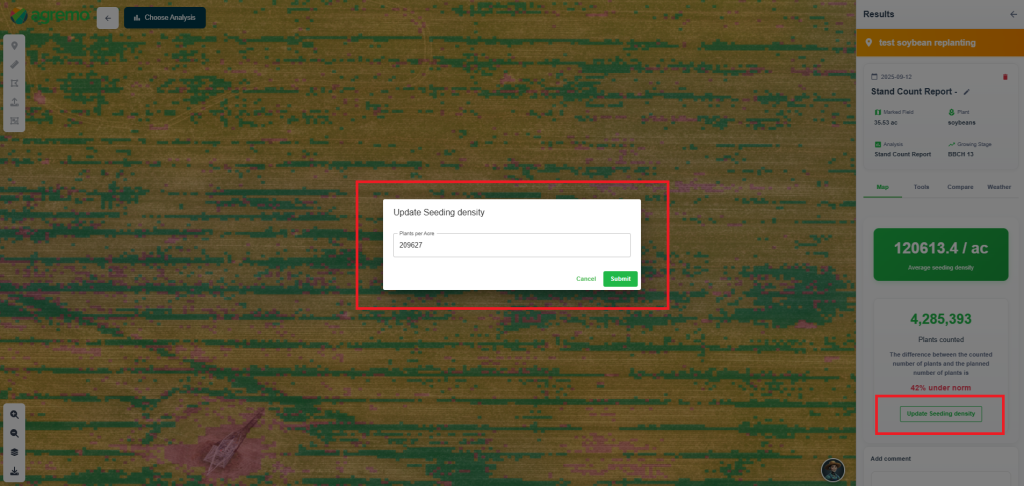
Seeding Density can be edited after results are delivered (available only for Stand Count).
If the Seeding Density was not defined correctly when requesting the analysis, it can now be updated afterwards. Providing a more accurate Seeding Density leads to more precise final analysis results.
After updating Seeding Density, the changes are reflected in:
The Results board (right sidebar)
Analysis outputs and PDF reports
Manual Result Correction – Plant Health Analyses
Manual Result Correction is available for the following Plant Health analyses:
This feature allows you to refine analysis zones and adjust results so they better match your field knowledge and specific use case, giving you full control over the final output.
How to make corrections
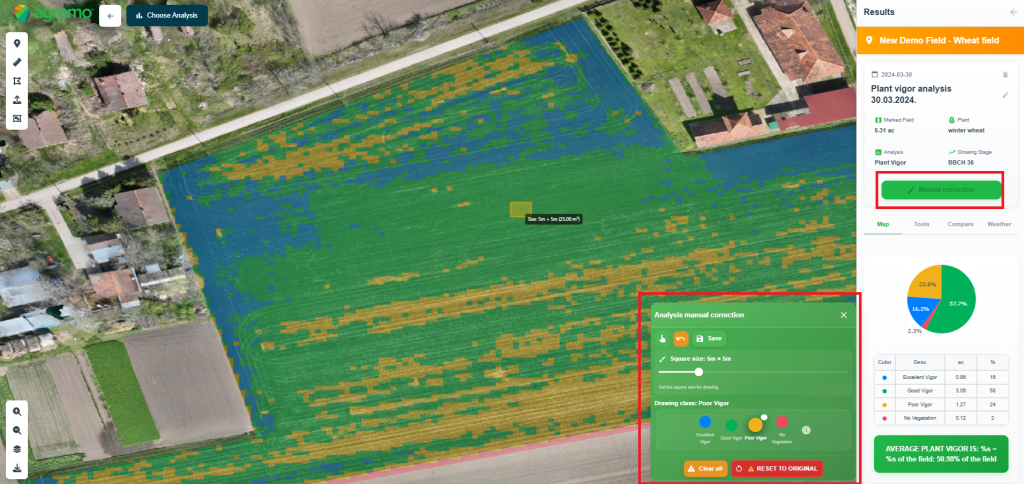
Click Manual Correction to open the correction tool.
Select the cluster color you want to modify.
Use the brush size slider to choose the square size.
Modify zones by clicking on the map or by holding Shift and dragging to edit multiple grid cells.
Click Save to apply and store your changes.
Once saved, updates are immediately reflected in:
The Results board (right sidebar)
The map view
Analysis outputs and PDF reports
Note: You can always return to the original results by clicking Reset to original, so you can make adjustments with confidence.
Watch our 👉 YouTube video 👈 on how to Manually correct results.
If you missed how to request AI analyses before making manual corrections, you can watch the video for a quick step-by-step guide.